- Sync contacts both ways (Propal to HubSpot, HubSpot to Propal)
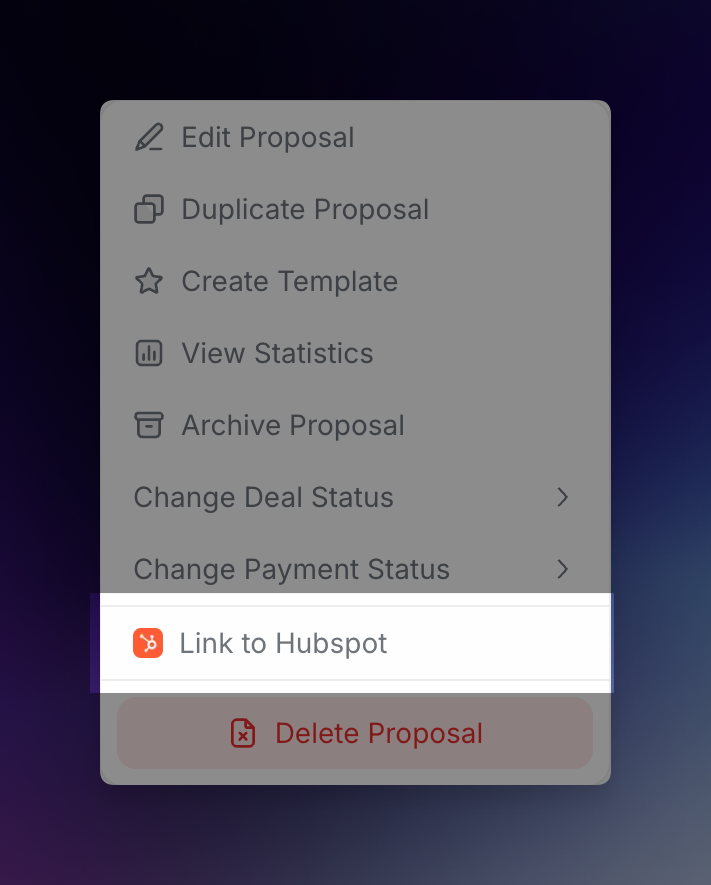
- Link proposals to HubSpot deals
- Preview data and manage duplicates before syncing
- Trigger manual re-syncs at any time
Connect to HubSpot
1
Open integration settings
Navigate to Settings > Integrations in your Propal dashboard.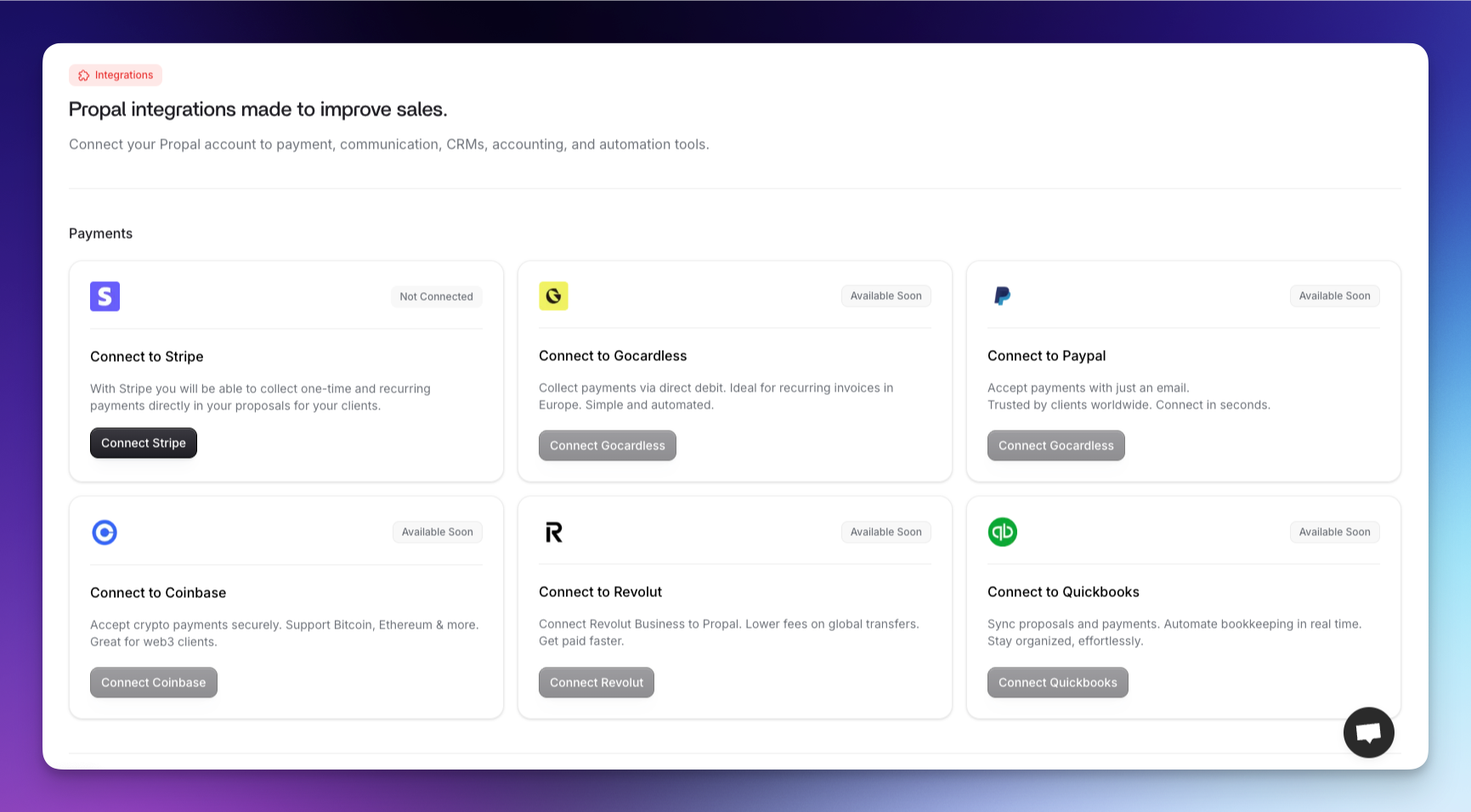
2
Find the HubSpot card
Scroll to the CRM section and locate the HubSpot card.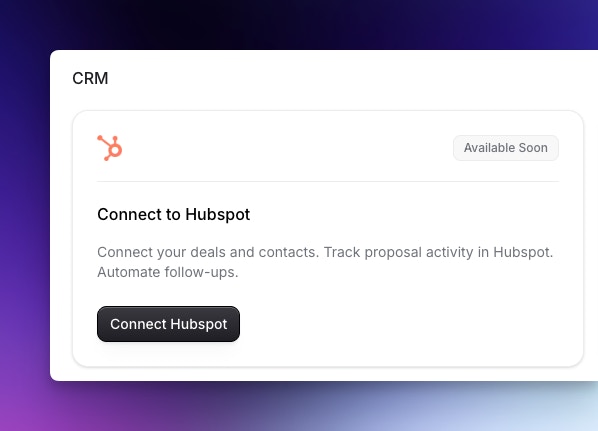
3
Authorize the connection
Click Connect to HubSpot and authorize Propal in the HubSpot OAuth flow.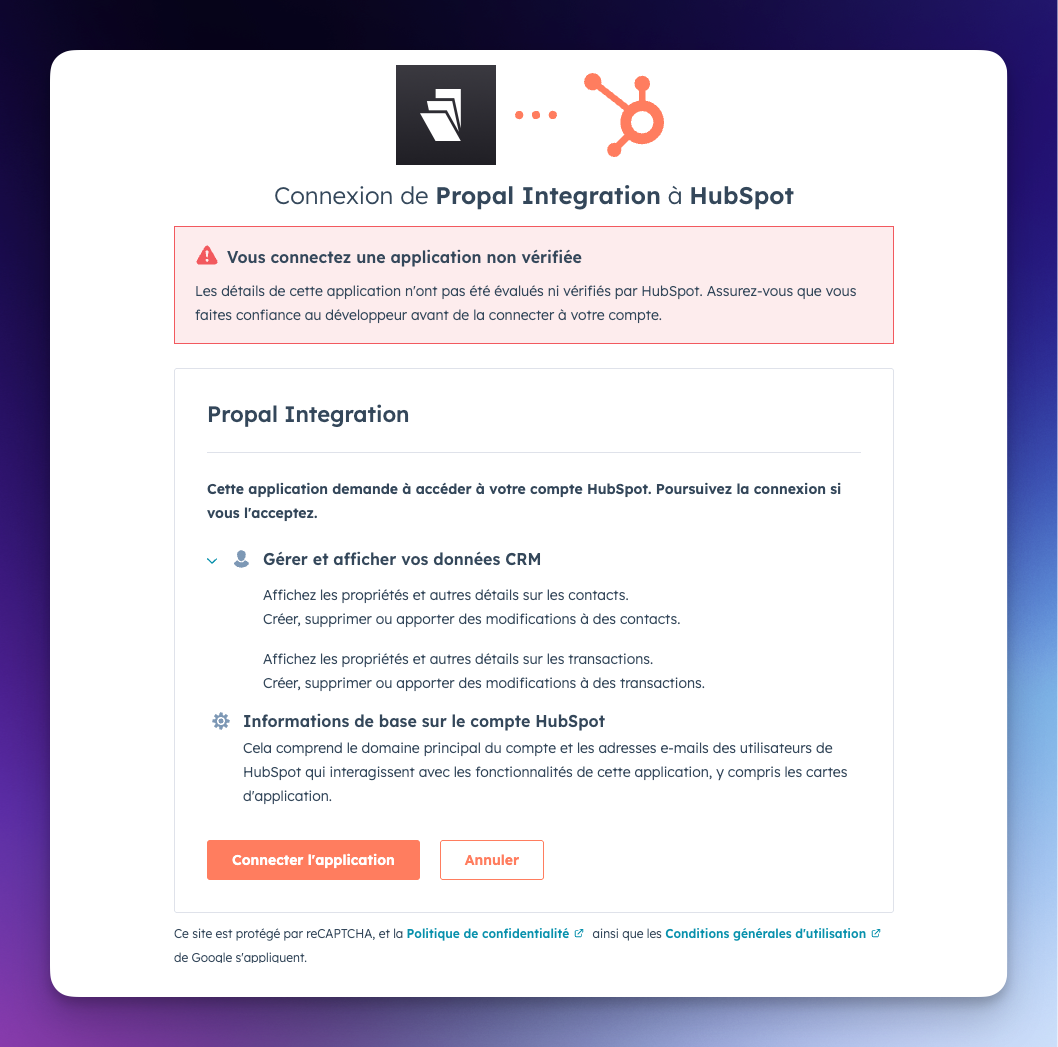
You need administrator permissions on your HubSpot account.
4
Connection confirmed
You are redirected to Propal with a confirmation. You can now use the sync assistant.
Sync contacts
The integration supports two sync directions:- HubSpot to Propal — Import HubSpot contacts as Propal leads
- Propal to HubSpot — Export Propal leads to HubSpot contacts
Sync assistant
The 3-step assistant guides you through the process: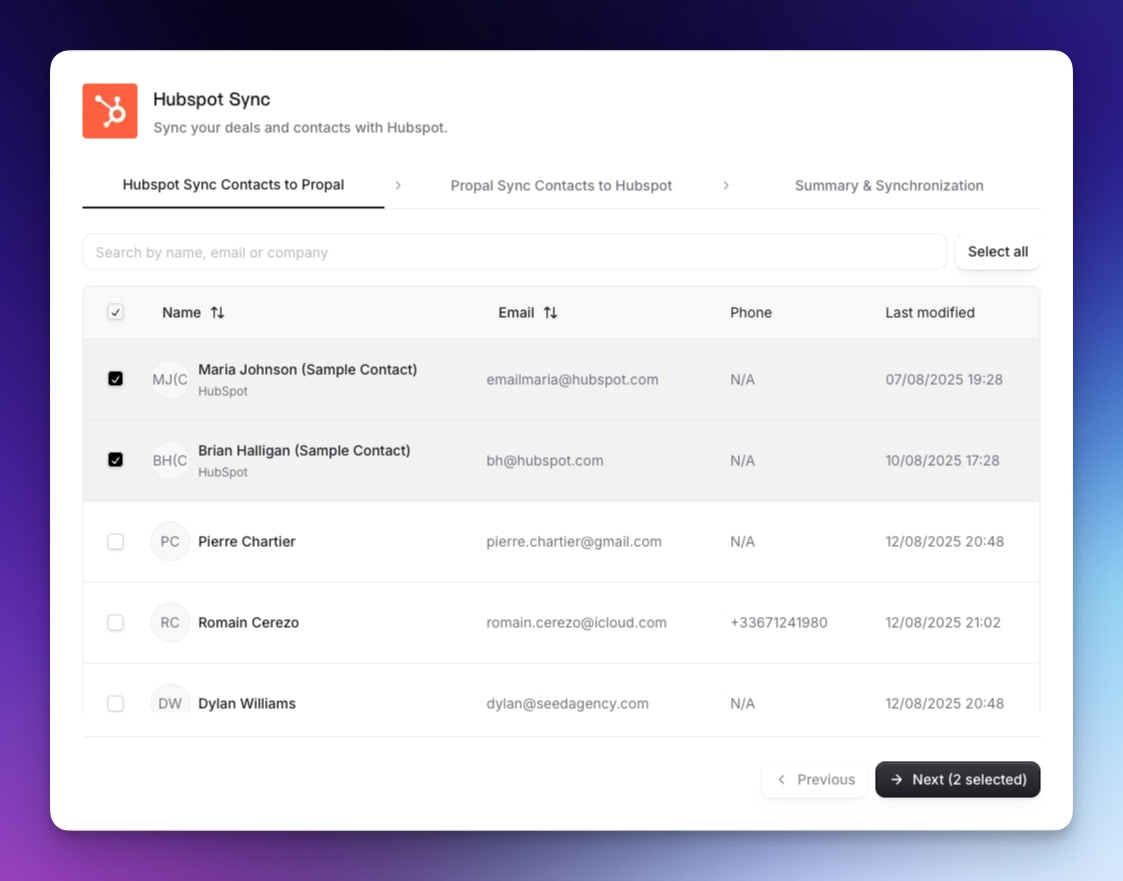
1
Select HubSpot contacts
Browse your HubSpot contacts, select the ones to import, and preview the data.
2
Select Propal leads
Choose which Propal leads to export to HubSpot. The assistant flags potential duplicates.
3
Review and sync
Review the summary of changes and start the sync. Progress is shown in real time.
Manual re-sync
You can trigger a re-sync at any time:- From the Clients page, click Resync HubSpot
- For a specific client, click the button, then Resync with HubSpot
Link proposals to deals
You can link any Propal proposal to a HubSpot deal:- Open a proposal and click the menu
- Select Link to HubSpot