> ## Documentation Index
> Fetch the complete documentation index at: https://docs.propal.io/llms.txt
> Use this file to discover all available pages before exploring further.
# HubSpot
> Synchronize contacts and proposals between Propal and HubSpot CRM.
The HubSpot integration provides bidirectional contact synchronization and proposal-to-deal linking between Propal and your HubSpot CRM.
**What you can do:**
* Sync contacts both ways (Propal to HubSpot, HubSpot to Propal)
* Link proposals to HubSpot deals
* Preview data and manage duplicates before syncing
* Trigger manual re-syncs at any time
## Connect to HubSpot
Navigate to **Settings > Integrations** in your Propal dashboard.
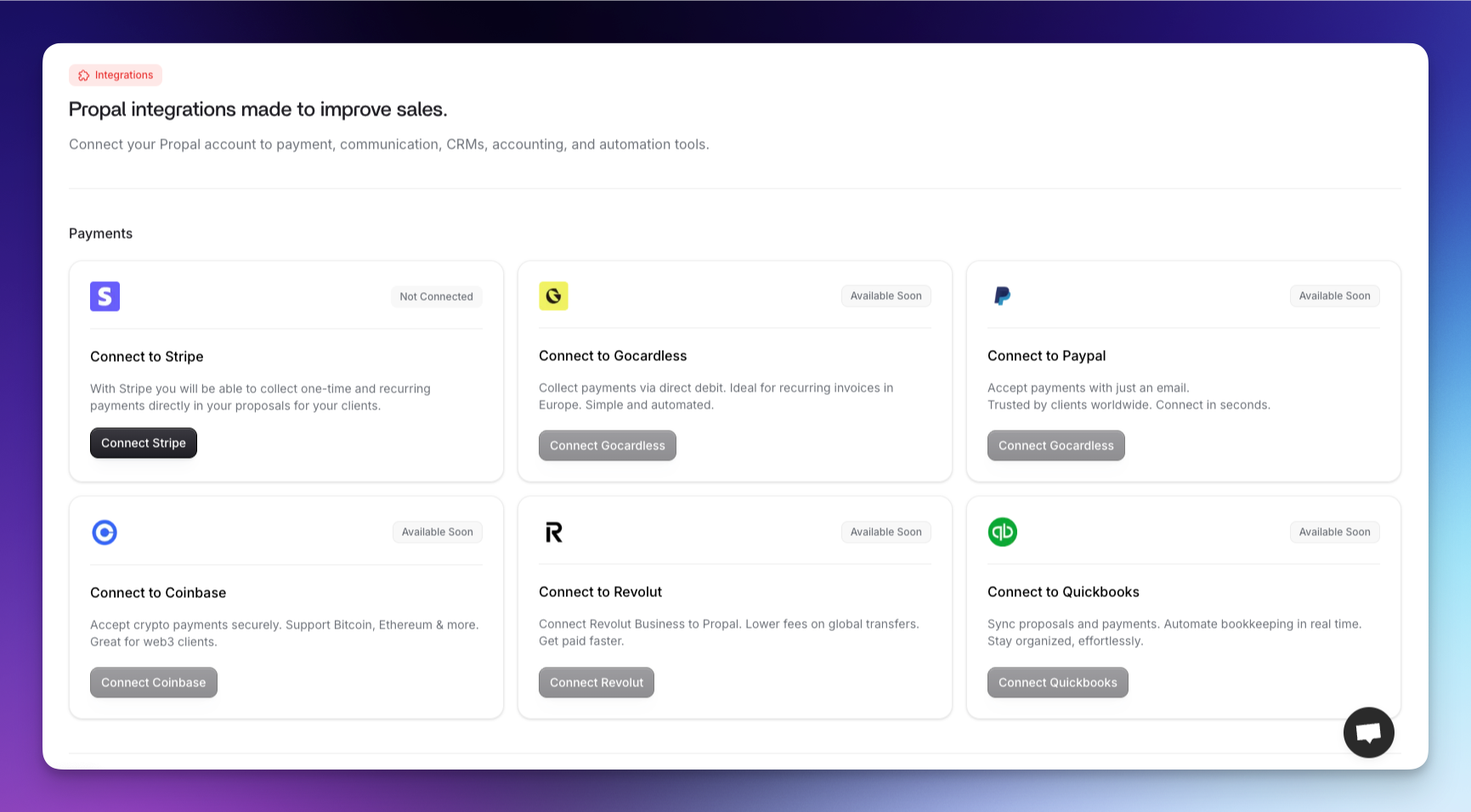 Scroll to the **CRM** section and locate the **HubSpot** card.
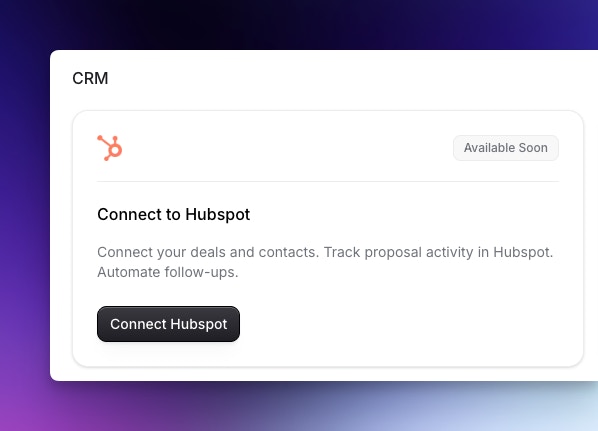 Click **Connect to HubSpot** and authorize Propal in the HubSpot OAuth flow.
You need administrator permissions on your HubSpot account.
Click **Connect to HubSpot** and authorize Propal in the HubSpot OAuth flow.
You need administrator permissions on your HubSpot account.
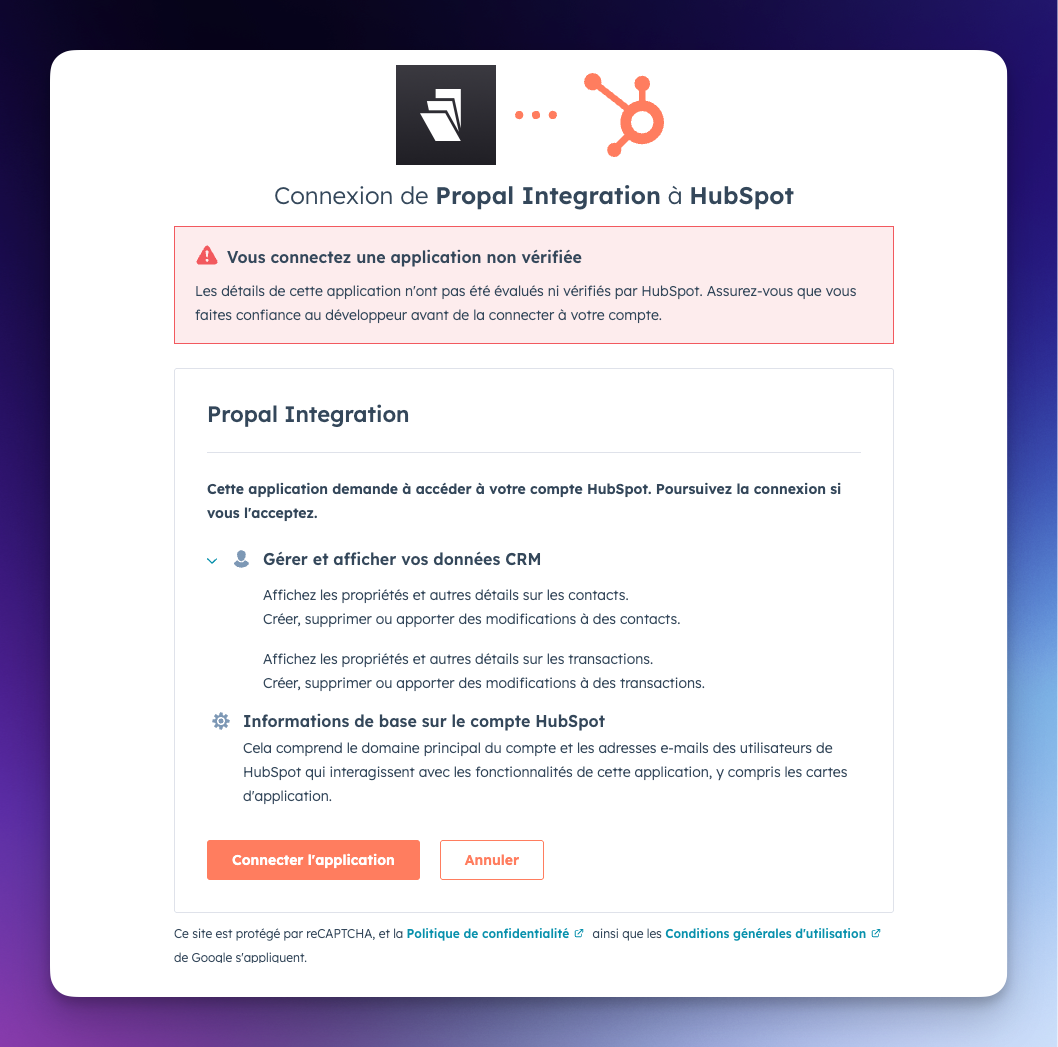 You are redirected to Propal with a confirmation. You can now use the sync assistant.
## Sync contacts
The integration supports two sync directions:
* **HubSpot to Propal** — Import HubSpot contacts as Propal leads
* **Propal to HubSpot** — Export Propal leads to HubSpot contacts
### Sync assistant
The 3-step assistant guides you through the process:
You are redirected to Propal with a confirmation. You can now use the sync assistant.
## Sync contacts
The integration supports two sync directions:
* **HubSpot to Propal** — Import HubSpot contacts as Propal leads
* **Propal to HubSpot** — Export Propal leads to HubSpot contacts
### Sync assistant
The 3-step assistant guides you through the process:
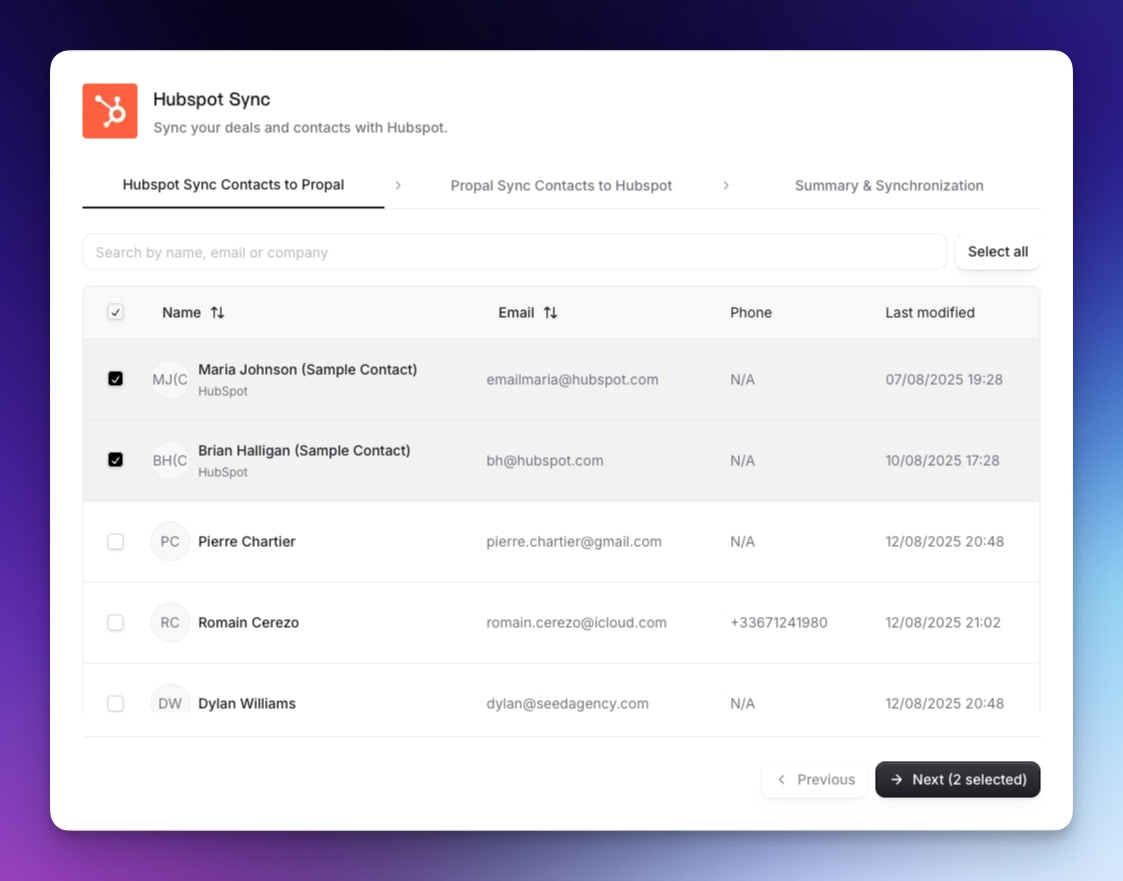 Browse your HubSpot contacts, select the ones to import, and preview the data.
Choose which Propal leads to export to HubSpot. The assistant flags potential duplicates.
Review the summary of changes and start the sync. Progress is shown in real time.
Clean up duplicates in both systems before your first sync, and test with a small batch first.
### Manual re-sync
You can trigger a re-sync at any time:
* From the **Clients** page, click **Resync HubSpot**
* For a specific client, click the button, then **Resync with HubSpot**
## Link proposals to deals
You can link any Propal proposal to a HubSpot deal:
1. Open a proposal and click the menu
2. Select **Link to HubSpot**
Browse your HubSpot contacts, select the ones to import, and preview the data.
Choose which Propal leads to export to HubSpot. The assistant flags potential duplicates.
Review the summary of changes and start the sync. Progress is shown in real time.
Clean up duplicates in both systems before your first sync, and test with a small batch first.
### Manual re-sync
You can trigger a re-sync at any time:
* From the **Clients** page, click **Resync HubSpot**
* For a specific client, click the button, then **Resync with HubSpot**
## Link proposals to deals
You can link any Propal proposal to a HubSpot deal:
1. Open a proposal and click the menu
2. Select **Link to HubSpot**
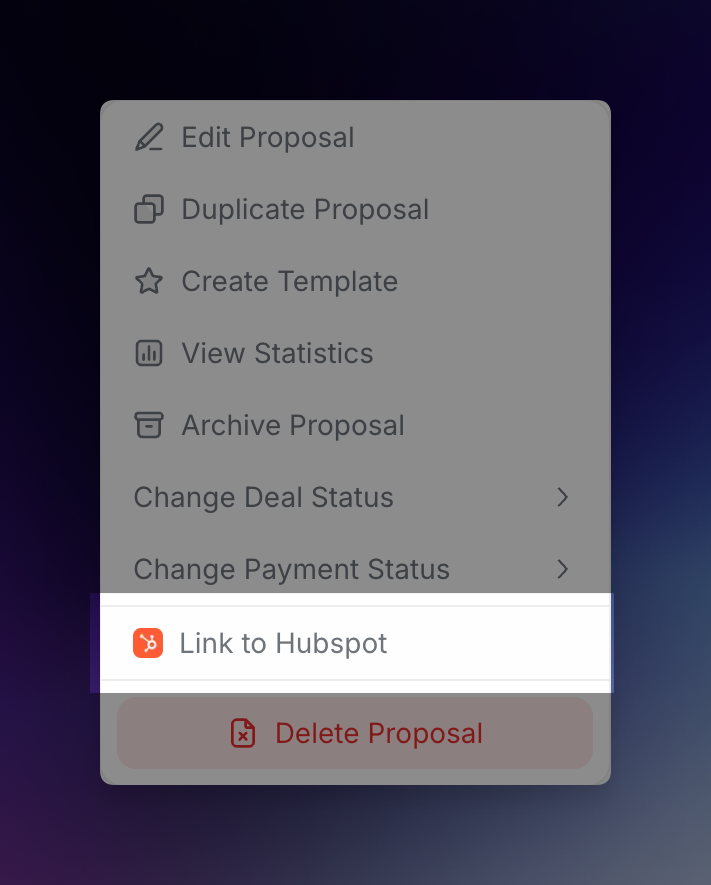 To re-sync or unlink, use the same menu and select **Manage with HubSpot**.